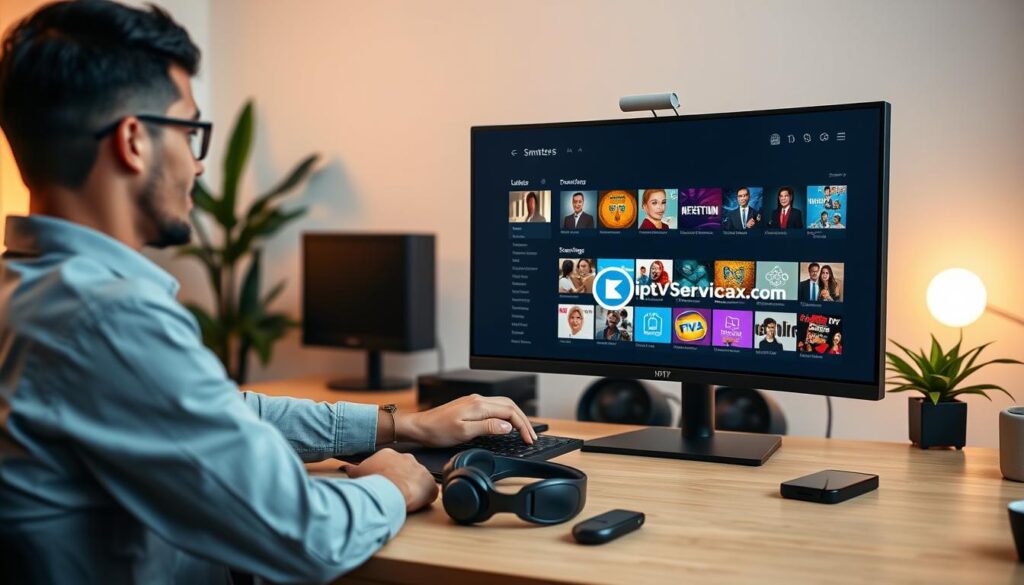
In today’s digital age, finding a reliable way to stream live television and on-demand content is essential. I discovered IPTV Smarters Pro, a powerful Windows application that has transformed my streaming experience. This software serves as an IPTV player, allowing me to access channels and content through my existing subscription, which typically includes an M3U link or Xtream Codes.
What sets this app apart is its user-friendly interface that mimics a premium cable service. I appreciate how it organizes channels, provides a TV guide, and even allows for multi-screen viewing. While the free version is fully functional, there’s an optional Premium upgrade for enhanced features.
Throughout this guide, I will share my personal insights on downloading, installing, and optimizing the application. My goal is to help users in the United States unlock their PC’s full entertainment potential. By the end, you’ll be equipped with everything you need to master this software and enjoy a seamless streaming experience.
Key Takeaways
- IPTV Smarters Pro is a versatile Windows application for streaming.
- It requires a separate subscription for channel access.
- The app features an organized interface that enhances user experience.
- Available on multiple platforms, the focus here is on the Windows version.
- Offers both free and Premium versions with additional features.
- This guide will cover everything from setup to optimization.
Understanding IPTV Smarters Pro for PC: Purpose and User Intent
Understanding the purpose of a streaming application can significantly enhance your viewing experience. Many users often confuse IPTV Smarters Pro with an IPTV service. However, it is essential to clarify that this application is a sophisticated player, not a content provider.
Think of your IPTV subscription as the collection of ingredients, while IPTV Smarters Pro is the master chef that presents these ingredients beautifully. This app does not come pre-loaded with channels, movies, or TV shows. Instead, it organizes and displays content from your IPTV provider in a user-friendly interface that resembles a premium cable service.
What sets this software apart is its design tailored specifically for IPTV users. It includes an Electronic Program Guide (EPG), channel categories, and Video on Demand (VOD) libraries. By taking login credentials from your IPTV provider—whether through an M3U playlist URL or Xtream Codes API—it transforms raw data into a visually appealing streaming experience.
I chose IPTV Smarters Pro over other players like VLC Media Player because of its intuitive interface and robust features. It is available on multiple platforms, making it a top choice for Windows users in the United States. This versatility allows me to turn my laptop or desktop into a complete entertainment hub without needing extra devices.
Importantly, the application itself is 100% legal. It acts merely as a media player, while the legality of the streaming content relies on your IPTV service provider and their licensing agreements. This clarity is crucial for users who want to ensure they are accessing content legally.
Another advantage is that IPTV Smarters Pro supports multiple subscriptions from different providers. This feature allows users to switch between services easily, making it ideal for those who want a mix of international and domestic content.
Understanding user intent is vital. Whether you aim to replace cable, access international channels, or organize your existing IPTV subscription, IPTV Smarters Pro meets these needs with its comprehensive features. Its popularity across the United States is a testament to its ability to deliver a premium viewing experience, complete with parental controls, favorites management, and multi-screen viewing that rivals traditional cable services.
Exploring the Powerful Features of IPTV Smarters Pro for PC
Diving into the features of a streaming platform reveals how it can elevate your watching experience. IPTV Smarters Pro is packed with tools that enhance usability and make content consumption enjoyable. Let’s explore these features in detail.
Organized Channel Viewing and Favorites Management
The organized channel viewing feature allows me to access channels categorized by country, genre, and content type. This structure makes it effortless to navigate through thousands of live TV options without feeling overwhelmed on my Windows device.
Additionally, the favorites management system is a game-changer. I can mark my most-watched channels for quick access, creating a personalized viewing experience that saves time and eliminates the need to scroll through extensive lists each time I launch the app.
Multi-Screen Viewing and On-Demand Content Access
One of the standout features is the multi-screen capability. I can watch up to four different channels simultaneously on a single screen. This is especially useful for sports fans who want to keep an eye on multiple games during events like NFL Sundays or March Madness.
Moreover, the on-demand content access provides a dedicated library of movies and TV shows. This library is separate from live TV, allowing me to browse and watch content at my convenience, similar to popular video streaming platforms.
Customization Options and Parental Controls
IPTV Smarters Pro also offers customizable player settings. I can adjust the aspect ratio, audio source, and zoom settings to optimize my viewing experience based on my monitor setup and personal preferences.
Another essential feature is the scheduling functionality. I can program content to watch from the beginning, ensuring I never miss key moments of live shows, even if I tune in late. This is invaluable for busy users juggling multiple commitments.
For families, parental controls are a must-have. I can set a password to restrict access to certain content categories, ensuring a safe viewing environment for children in American households.
Lastly, the recording functionality built into the player allows me to record live TV streams directly to my PC’s hard drive for later viewing. This feature may depend on the IPTV provider’s settings and permissions, but it adds significant value.
In conclusion, the combination of Live TV Mode, On-Demand Mode, and Multi-Screen Mode creates a comprehensive video streaming ecosystem. This transforms the Windows application into a complete entertainment hub, rivaling any cable or satellite setup.
Step-by-Step Guide: How I Download and Install IPTV Smarters Pro on Windows
Installing the right application is key to unlocking a world of streaming possibilities. In this section, I will guide you through the process of downloading and installing the IPTV Smarters Pro application on your Windows device. This will ensure you can enjoy a seamless streaming experience.
Finding the Official Download Source
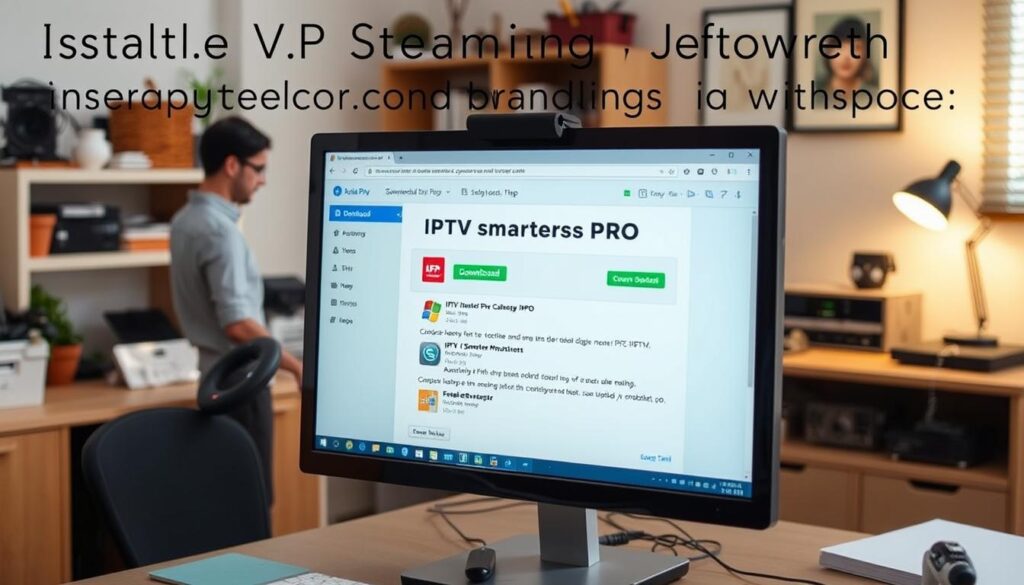
The first step is to ensure you download IPTV Smarters Pro from a safe source. The only legitimate place to obtain this application is from the official developer’s website: iptvsmarters.com. Navigate to the “Downloads” section and click on the “Download for Windows” button. This action will download the installer file, which will have a .exe extension.
It’s crucial to avoid third-party software sites, as they may offer counterfeit versions that could harm your computer.
Installation Process Walkthrough
Once the download is complete, locate the file in your “Downloads” folder. It will typically be named something like IPTV-Smarters-Pro-Setup-x.x.x.exe. Double-click the .exe file to begin the installation process.
You may encounter a User Account Control (UAC) prompt from Windows asking for permission. Click “Yes” to proceed. An installation wizard will appear; click “Next” to continue.
Next, accept the license agreement by selecting “I accept the agreement.” You can choose the destination folder, but the default location usually works fine. It’s also a good idea to create a desktop shortcut for easy access, which I recommend.
Click “Install” and wait for the installation to complete. This process typically takes only a few moments on modern Windows machines.
Launching the App for the First Time
After installation, ensure the “Launch IPTV Smarters Pro” checkbox is selected before clicking “Finish.” This action will open the app immediately, ready for you to configure your IPTV subscription details.
Rest assured, the official installation file is checked against malware using VirusTotal and Google Safe Browsing, providing peace of mind regarding the safety of the software you are installing.
Upon your first launch, the app will prompt you to “Add User.” You can choose to load a playlist or log in using Xtream Codes API, setting the stage for the subscription setup in the next section.
Now that you have successfully installed the IPTV Smarters Pro application, you are ready to connect to your chosen IPTV service for an unparalleled streaming experience on Windows.
Setting Up My IPTV Subscription in IPTV Smarters Pro for PC
Connecting your IPTV subscription to the player is the next crucial step after installation. This process allows you to access all the content provided by your service. IPTV Smarters Pro offers two primary methods for logging in, making it easy to get started.
Logging In Using an M3U Playlist URL
When you first launch the app, you will see a screen asking you to “Add User.” Click on the “Load Your Playlist or File/URL” option. You will then see several fields:
- Playlist Name: Give your playlist a memorable name, like “My SA IPTV.”
- Playlist Type: Select “M3U URL.”
- File/URL: Carefully copy the M3U URL provided by your IPTV service and paste it here. Using copy-paste is best to avoid errors, as these links can be lengthy.
After filling in the details, click the “Add User” button. The app will begin downloading and processing all channels, VOD content, and EPG data from the link. This may take a few minutes, depending on your subscription size and internet speed.
Using the Recommended Xtream Codes API Method
I strongly recommend using the Xtream Codes API method, as it is the easiest and most reliable option. This method automatically syncs everything, including the Electronic Program Guide, and is less prone to errors.
On the initial “Add User” screen, select the “Login with Xtream Codes API” option. A simpler login screen will appear with four fields:
- Any Name: Assign a name for your profile.
- Username: Enter the exact username provided by your service.
- Password: Enter the exact password—remember, it is case-sensitive.
- URL Portal: Enter the server portal URL, which usually looks like http://line.xyz:8080.
Click the “Add User” button. If your credentials are authenticated successfully, the app will start downloading your channels and VOD library immediately.
Navigating the Main Dashboard and Content Categories
Once logged in, you will be taken to the main dashboard. Here, you can select from three primary content categories:
- Live TV: Access all your live television channels.
- Movies: Browse through a library of on-demand films.
- Series: Find your favorite TV shows and series.
This organized layout makes it easy to explore the vast world of streaming content available through your IPTV service.
For troubleshooting common login issues, double-check your username and password for case sensitivity. Ensure the portal URL format is correct and that your IPTV subscription is active. Once logged in successfully, you can enjoy organized, high-quality streaming content through the IPTV Smarters Pro player on your Windows device.
Optimizing My Streaming Experience on IPTV Smarters Pro for Windows
While the IPTV Smarters application performs well right out of the box, there are several key settings I can adjust to enhance my streaming experience. These tweaks can significantly improve performance, especially for users in the United States who may face varying internet speeds and hardware configurations.
To start, I click the gear icon to access the Settings menu. Here, I can explore various options that help tailor the application to my needs.
Adjusting General Settings for Better Performance
One of the first settings I check is the Stream Format. The default setting is usually MPEGTS, which works well for most streams. However, if I encounter playback issues with a specific stream, I might experiment with alternative formats to find one that resolves the problem.
Next, I look at the Time Format. I can switch between 12-hour and 24-hour formats, allowing me to customize the Electronic Program Guide (EPG) timeline to my personal preference. This small change makes the TV guide feel more intuitive and familiar.
Another important setting is the EPG Timeline. I recommend downloading a shorter range, such as three days instead of seven. This adjustment can significantly speed up the initial loading time when the app processes channel guide information from my IPTV service.
Lastly, I set up Parental Control by creating a password to lock certain content categories. This feature ensures a safe viewing environment for children in my household.
Choosing Between Built-In and External Video Players
Deciding between the built-in player and an external video player is another critical choice. The built-in player is fast and integrated, making it suitable for most users. However, if I have VLC Media Player installed, I can set it as the default external player. VLC is renowned for its ability to handle almost any video format and can sometimes manage problematic streams better than the built-in option.
To configure VLC as the default player, I go to the Settings menu, select External Players, and add VLC. This flexibility is one of the standout features of the application, catering to users who demand the highest quality video playback.
Enhancing Privacy and Speed With a VPN
For any serious user, employing a Virtual Private Network (VPN) is highly recommended. A VPN encrypts my internet connection, effectively hiding my streaming activity from my Internet Service Provider (ISP). This not only enhances my privacy but also helps bypass throttling issues.
Some ISPs can detect high-bandwidth activities like video streaming and may deliberately slow down my connection speed, leading to frustrating buffering during live sports or movies. By using a VPN, I can prevent my ISP from seeing what I’m doing, ensuring I get the full internet speed I pay for.
To set up a VPN, I simply install a reputable VPN client on my Windows PC, connect to a server, and then launch IPTV Smarters. This step is crucial for watching high-definition content without interruption, especially during peak usage hours.
In conclusion, these adjustments—from EPG timeline settings to VPN usage—combine to create a professional, buffer-free streaming experience. By optimizing my settings, I maximize the value of both the IPTV Smarters application and my underlying IPTV subscription service.
| Setting | Description | Recommendation |
|---|---|---|
| Stream Format | Default format for video streams | Use MPEGTS unless issues arise |
| Time Format | Format for displaying time | Choose between 12-hour and 24-hour |
| EPG Timeline | Days of EPG data to download | Set to 3 days for faster loading |
| Parental Control | Lock content with a password | Enable for family safety |
| Video Player | Choice of built-in or external player | Use VLC for better compatibility |
| VPN | Encrypts internet connection | Essential for privacy and speed |
How I Select the Right IPTV Service to Pair with IPTV Smarters Pro
Choosing the right IPTV service is crucial for maximizing the benefits of the IPTV Smarters player. The quality of your viewing experience largely depends on the provider you select. Here are my personal criteria for evaluating potential services.
First, I always inquire about server stability. A reliable provider should have strong uptime guarantees. This is especially important during high-traffic events like the Super Bowl or UFC fights, where buffering can ruin the experience.
Evaluating Server Stability and Stream Quality
Next, I assess stream quality. I look for providers that offer multiple resolution options—SD, HD, and FHD. This ensures I can enjoy crisp, clear video without compression artifacts or audio sync issues. Quality streams make a significant difference when watching on my Windows device.
Checking Channel Offerings and EPG Accuracy
Another critical factor is the comprehensive channel list. I make sure the service includes all the channels I want, whether they are American sports networks, premium movie channels, or local broadcast stations. Additionally, a reliable Electronic Program Guide (EPG) is essential for navigating the extensive channel lineup.
A good provider will maintain an accurate and up-to-date EPG for most of its offerings. This feature helps me find my favorite shows and movies quickly.
Importance of Customer Support and Reliability
Customer support is another non-negotiable aspect of my selection process. I need a provider with a responsive and knowledgeable support team. They should be able to resolve login issues, provide the correct M3U URL or Xtream Codes credentials, and troubleshoot any streaming problems that may arise.
After selecting a provider and completing the subscription process, I receive essential login credentials: Username, Password, and Portal URL. These are unique to my account and cannot be obtained from the IPTV Smarters developers.
To ensure I’m making the right choice, I recommend testing a service before committing long-term. Many providers offer trial periods or short-term subscriptions. This allows me to evaluate server stability, stream quality, EPG accuracy, and customer support responsiveness firsthand.
Lastly, I remind myself of the legal considerations when using IPTV services in the United States. While the IPTV Smarters app is legal, the content accessed depends on the provider’s licensing. It’s vital to choose reputable services that operate within legal boundaries.
In conclusion, pairing the powerful IPTV Smarters player with a high-quality, reliable IPTV service is the ultimate formula for unlocking thousands of live channels, movies, and shows on my Windows PC. This combination creates an entertainment experience that rivals or exceeds traditional cable and satellite options.
Conclusion: Unlocking My PC’s Full Streaming Potential with IPTV Smarters Pro
In the ever-evolving world of digital entertainment, my experience with the IPTV Smarters application has been nothing short of transformative. This software has truly turned my Windows device into a comprehensive entertainment hub, rivaling traditional cable services.
Key features like organized channel viewing, multi-screen capability, and customizable settings enhance my streaming experience. The free version of the app is fully functional, making it accessible to everyone. Pairing it with a reliable IPTV service ensures a seamless viewing experience.
Additionally, I encourage everyone to consider using a VPN for added privacy and to prevent any ISP throttling. With the knowledge gained from this guide, you are now equipped to optimize your streaming setup.
Remember, the same powerful experience is available across various devices, making this software a versatile choice. I believe that IPTV Smarters is paving the way for the future of entertainment on PCs. So, take the leap and unlock thousands of channels, movies, and series today!